

Torrent Browser User Interface Guide
Torrent Suite Software space on Ion Community
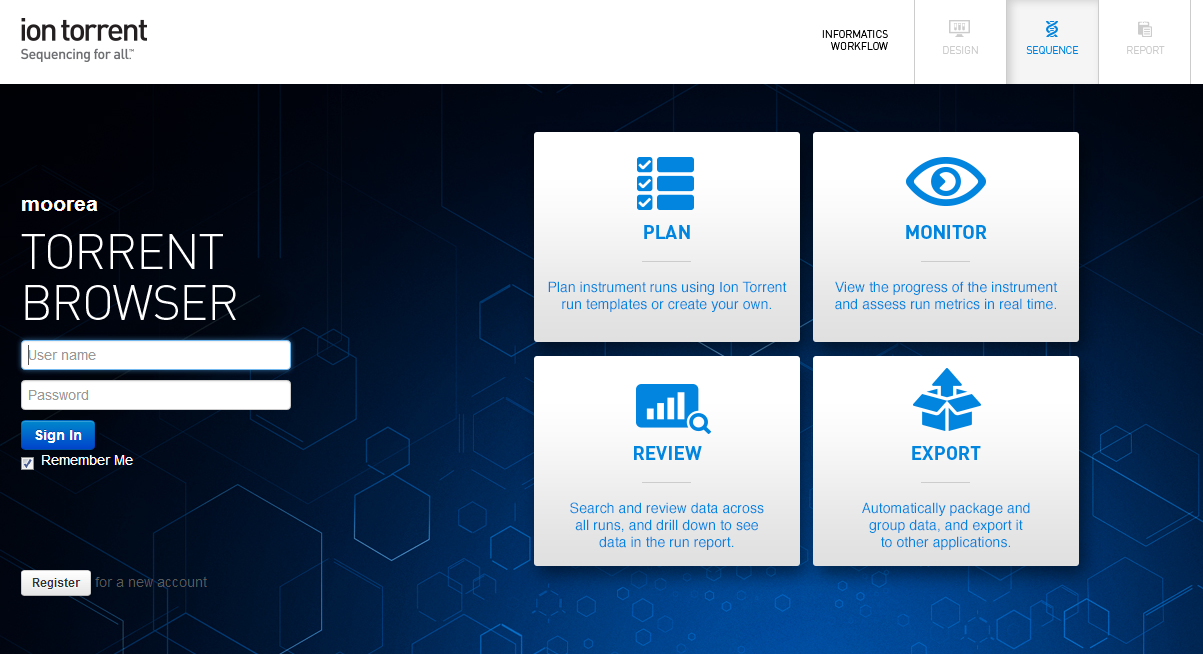
The Torrent Browser Login Page
The login page shows the main phases of your use of the Torrent Browser:
- Plan Create new run templates and plan sequencing instrument runs. You can use Ion Torrent templates or create new ones that match your own protocols.
- Monitor View the progress of the sequencing instrument in real time and assess the run metrics as they are gathered.
- Review Search and review across all of your runs and drill down to see your data in the run report. View your run results grouped into projects.
- Export Automatically package and group data and export it to other applications.
Enter your user name and password, and click Sign In .
Register for a new account
Each new account requires administrator approval and it not active until approval is granted.
Follow these steps to register for a new user account:
-
On the login page, click the Register link:

-
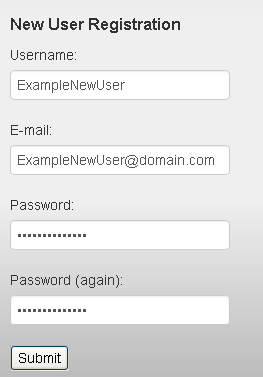
Fill out the new user form and click
Submit
:
-
You see the following message that your account is pending admin approval:
Thanks for Registering
Your account has been created and is pending approval by an admin user.
Please contact your local admin and ask them to visit the Account Configuration page to activate your new account.
Sign out
Follow these steps to log out of your Torrent Browser:
-
Save your current work and be sure that you want to log out. There is no confirmation step.
-
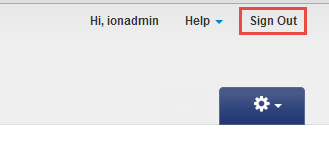
Click the
Sign Out
link in the top right corner:
 Torrent Browser User Interface Guide
The Login Page
The Plan Tab
Torrent Browser User Interface Guide
The Login Page
The Plan Tab
Templates
Planned Runs
Plan by Sample Set
Create Samples and a Sample Set
Sample Attributes
Template and Planned Run Wizard
Create Multiple Run Plans
Create a Template with Ion AmpliSeq.com Import
The Monitor Tab
The Data Tab
Completed Runs and Reports Tab
Work with Completed Runs
Reanalyze a Completed Run
BaseCaller Parameters
TMAP Parameters
The Projects Listing Page
Project Result Sets Page
 Compare Multiple Run Reports
CSV Metrics File Format
Compare Multiple Run Reports
CSV Metrics File Format